DYOJ 3D Surgery · Tutorial
REPAIR ONE PART.KEEP YOUR DESIGN.
Meet DYOJ 3D Surgery. A smarter way to improve the details of your creation without starting over.
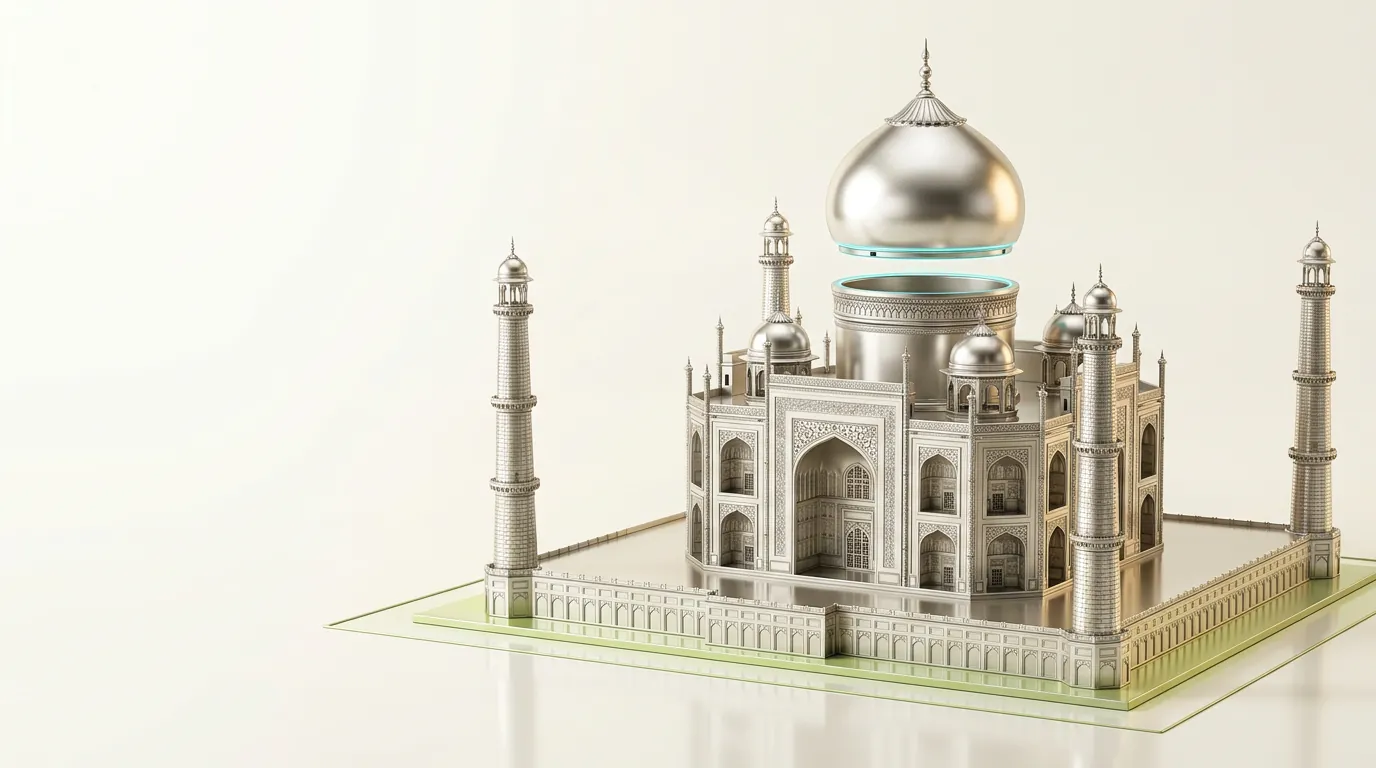
Why 3D Surgery
Preserve the original
Your original model and every checkpoint stay untouched.
Improve one detail
Replace only the part that needs it — keep everything you love.
Save, then choose what comes next
Keep your new creative GLB. Workshop submission is optional and separate.
How it works
Six precision stages. One new 3D version.
- 01
Select the Original
Start with an eligible saved DYOJ 3D model and choose the part you want to replace.
Your action: Open 3D Tools → 3D Surgery. Select a saved original and tap one or more mesh parts in the 3D viewer.
DYOJ AI Companion tip: The complete original stays untouched. If you need more individual parts, optional part preparation may be available.
- 02
Prepare the Original Cut
Precisely decide which original geometry stays and which region you will replace.
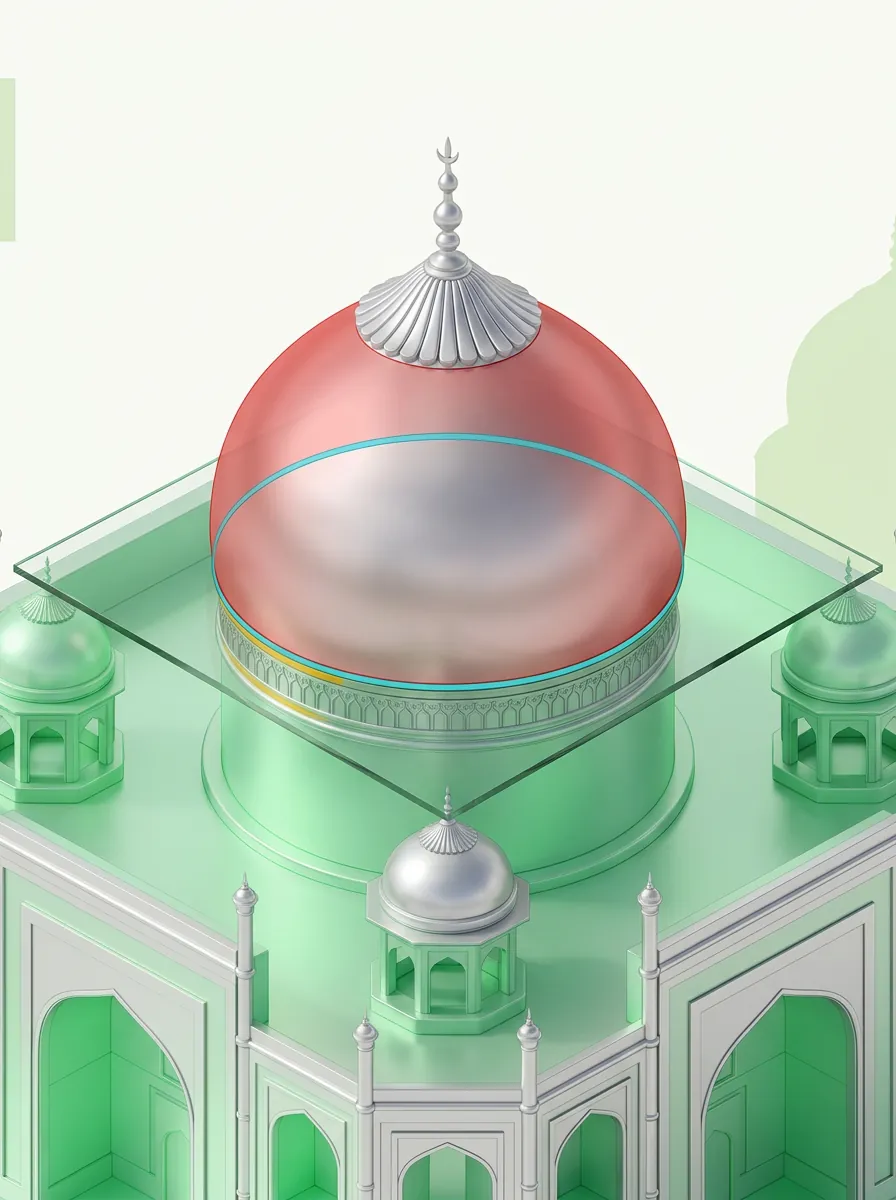
Your action: Move and rotate the cutting plane, inspect the green preserved area and red replacement area, and continue when the cut looks right.
DYOJ AI Companion tip: Yellow contact markers are guides for the original attachment; cyan shows the cutting-plane intersection. Undo, redo, reverse and preserved-side controls remain available.
- 03
Select the Replacement
Reuse a different saved model, select another part from the same model, or optionally create a new replacement using AI.
Your action: Choose the replacement source and tap the mesh parts you want to bring into your original model.
DYOJ AI Companion tip: You can combine saved 3D versions from other DYOJ tools. Optional Tripo generation uses provider credits.
- 04
Prepare the Replacement Cut
Give the donor its own independent precision cutting plane so you keep exactly the replacement geometry you want.
Your action: Adjust the replacement cut, choose the preserved side, inspect the section and continue to alignment.
DYOJ AI Companion tip: The replacement cut is separate from your original cut. Neither operation overwrites its source GLB.
- 05
Align and Refine
Keep the original model fixed while you move, rotate and scale the replacement into position.
Your action: Use the 3D alignment controls, Improve Fit, optional Check Fit, undo, redo or short movement commands to refine your join.
DYOJ AI Companion tip: Fit scores are optional guidance for editing, not a manufacturing permission or an approval gate.
- 06
Preview and Save the Complete Model
DYOJ reconstructs the whole jewellery with your replacement, preserving the unaffected original parts.
Your action: Choose Preview Complete 3D Model, compare Original with My New Version, then Save This Version. Send for Manufacturing Review only if you want a workshop handoff.
DYOJ AI Companion tip: Creative saving is independent of 3D Doctor, physical sizing, STL or casting checks. Each saved GLB remains reusable in the DYOJ 3D Toolbox.
Two models, one design
Receiver vs donor
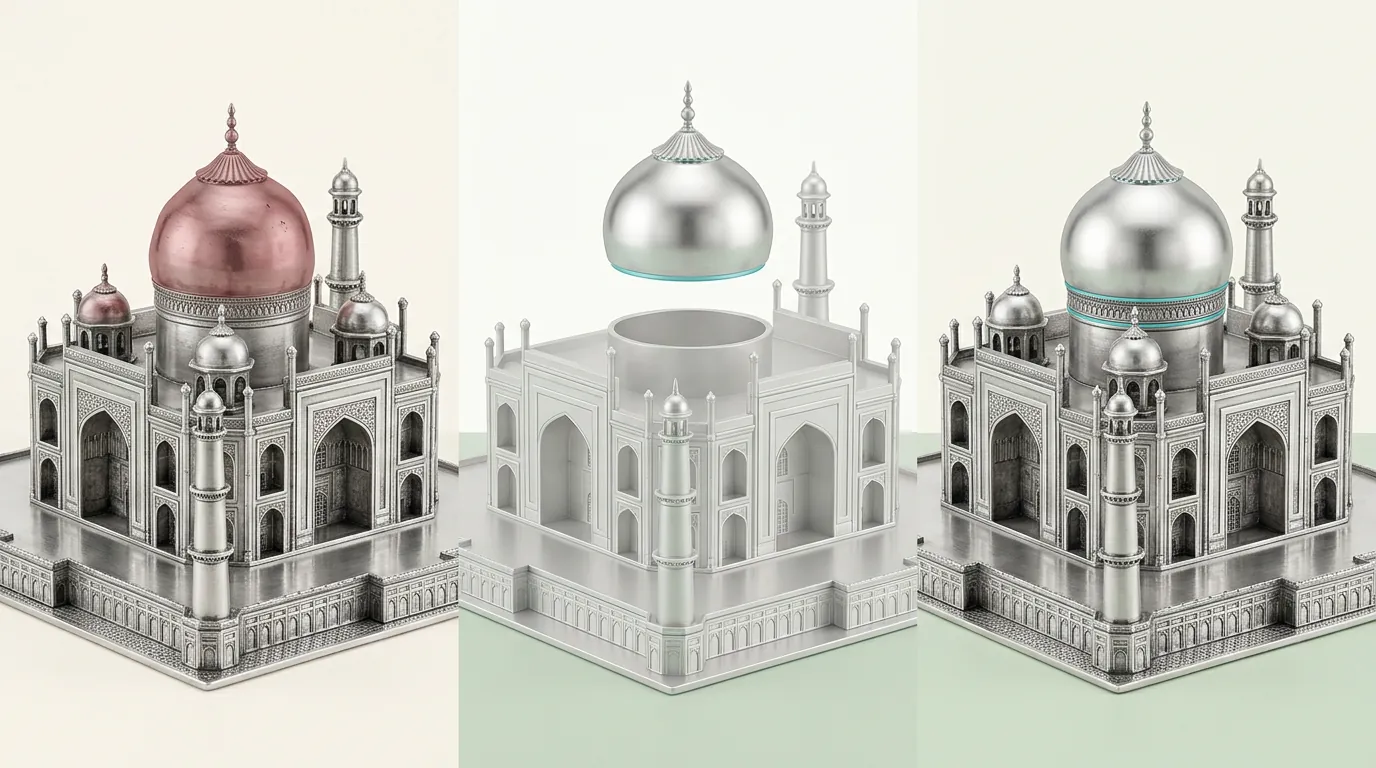
Original (receiver) — the model you keep. It stays fixed and preserves all untouched geometry.
Replacement (donor) — the better part from a different saved model, another part of this model, or optional AI generation.
Your saved version — a new complete GLB. Source geometry stays safe. This illustration is not a software screenshot.
Cutting plane colour guide
GREEN — Preserved — the healthy structure you keep.
RED — Replace — the region that will be removed.
CYAN — Cutting plane — where the cut is made.
YELLOW — Original attachment/contact evidence — a guide, not a certified joining seam.
Real story · our original Surgery pilot
We Did It. Entirely Through DYOJ Mobile Surgery.
Before we introduced the current customer workflow, our founder used an iPhone to repair the central dome of a Taj Mahal silver sculpture design. The original model (A) was preserved throughout.
A second model (B) was generated from the approved Front and Back reference images. Its better dome — made of several segmented meshes — was selected as the donor and aligned with an alignment score of about 96.4/100.
DYOJ reconstructed the complete model at 100 mm high and the engineering STL was downloaded. Later, a separate external tool — ELEGOO SatelLite Auto Repair — previewed zero bad edges, holes, orientation issues and intersections after its own repair.
This is a record of our earlier engineering pilot, not a required step in today’s six-stage customer Surgery flow. The external auto-repair was separate from DYOJ. No physical silver casting of this piece has been completed yet.
Create freely. Let specialists handle production.
Your complete Surgery GLB can be previewed and saved without manufacturing, physical-scale or geometry-approval screens. Send for Manufacturing Review only when you are ready. Our workshop then separately handles engineering, printing, casting and quality.
Good to know
Your questions, answered.
Is 3D Surgery the same as 3D Part Enhancer?
No. Part Enhancer reimagines a selected component with AI. 3D Surgery is the detailed six-stage tool for cutting, selecting and precisely aligning replacement geometry.
Do I need professional 3D experience?
No. DYOJ offers a step-by-step journey with suggested cuts, interactive views and optional automatic fit guidance. The precision controls remain available when you want more control.
What can I use as a replacement?
Choose a different part of the same model, another saved DYOJ 3D version or an optional new AI-generated replacement model. Additional AI generation may use credits.
Can I select multiple mesh parts?
Yes. Both the original region and the replacement region can contain multiple selected components.
What do the green, red, cyan and yellow markers mean?
Green is geometry you preserve; red is the portion to replace; cyan illustrates the cutting plane; yellow indicates estimated original attachment/contact evidence.
Does Surgery erase my original model?
No. The original and earlier saved models remain available. Surgery reconstructs a new complete jewellery version that you can preview and save.
Must I get a high fit score before saving?
No. Improve Fit and Check Fit assist positioning but are not mandatory manufacturing approval controls in the customer creative flow.
Does 3D Doctor or STL approval run before I can save?
No. Your creative GLB can be saved without Doctor, physical sizing or STL approval. Those concerns belong to the factory after an optional manufacturing submission.
Can I continue editing the saved model?
Yes. Your new version can be opened in other eligible DYOJ 3D tools, such as Eraser, Engraving, Part Remover or Part Enhancer.
Does saving mean the model is ready to cast?
No. Saving a visual creative model and production readiness are different. Manufacturing specialists separately review geometry, sizing and casting if you choose to submit it.