Choose Sphere or Box
Match your eraser shape to the region you want to remove.
3D Eraser · DYOJ TUTORIAL
EVERY DETAIL IS YOUR DECISION
Sometimes the tiniest change makes the biggest difference.
Made for your imagination
3D Eraser lets you remove an exact region of your jewellery using a sphere or box. Position the eraser, control its size, preview the geometry change and save a new version.
Match your eraser shape to the region you want to remove.
Adjust eraser size and X, Y and Z position; work precisely from different angles.
Preview the actual removed geometry and preserve each saved 3D version.
Step by step · Your own pace
Go to 3D Tools and open Eraser. Choose the original or any eligible saved version.
Your action: Select your saved 3D model in the dropdown.
DYOJ tip: A previous Part Remover or Engraving version can become your Eraser source.
Sphere is useful for rounded regions; Box is useful for a more rectangular volume.
Your action: Choose Sphere or Box under Eraser shape.
DYOJ tip: Use the smallest eraser that covers your unwanted detail.
Adjust its extent before applying an edit so you can see the volume that will be affected.
Your action: Use the Eraser size slider or minus/plus controls.
DYOJ tip: Orbit the 3D view to inspect the eraser from more than one side.
Position the removal volume along X, Y and Z. These controls correspond to movement across and through your model.
Your action: Adjust the position controls until only the intended region is inside the eraser.
DYOJ tip: Check the back of your jewellery so you don't erase a detail you want to keep.
Apply the erasing operation and inspect the actual resulting mesh in 3D. Refine the selection or undo while editing if necessary.
Your action: Use the Eraser workspace's apply and preview controls.
DYOJ tip: An eraser edits a geometric region, not a named independent component.
Your updated GLB is stored as another private version of the jewellery, leaving the original intact.
Your action: Select Save This Version when you like what you see.
DYOJ tip: You can repeat this process for a series of small refinements.
Open your saved result in other tools or optionally send that exact model to the manufacturing team.
Your action: Select Send for Manufacturing Review if you are ready for a workshop handoff.
DYOJ tip: Creative saving does not require 3D Doctor or physical manufacturing checks.
See the creative idea
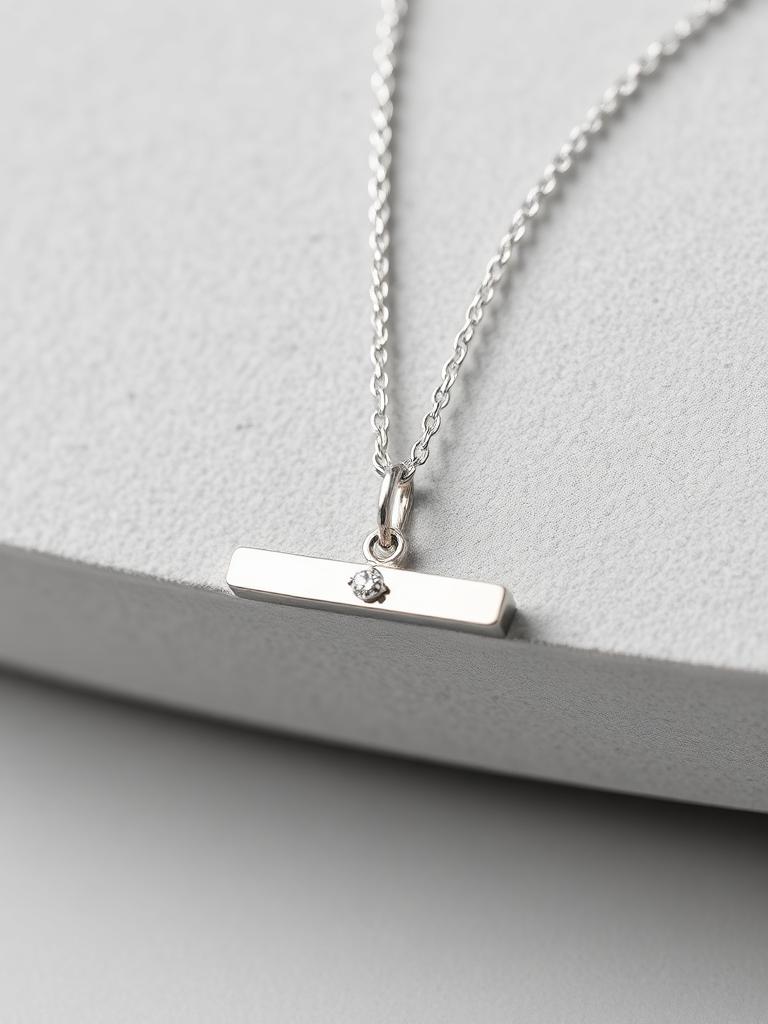
Picture a pendant with a small raised bump you don't want. Place a spherical eraser over the area, reduce its size, inspect the cut and keep the clean result.
This illustration helps explain the editing principle. Your real result is created and previewed in the interactive DYOJ 3D tool.
Original with extra volume
One creative example
Picture a pendant with a small raised bump you don't want. Place a spherical eraser over the area, reduce its size, inspect the cut and keep the clean result.
Use Eraser for a selected geometric area. For removing a separate complete component, Part Remover is usually faster.
Create first. Manufacture with care.
Saving your creative GLB doesn't require 3D Doctor, structural certification or a manufacturing approval screen. Sending it to the workshop is optional, and our specialists review production feasibility separately.
Good to know
Eraser cuts a chosen volume inside the geometry. Part Remover deletes complete individually selectable mesh components.
The editor offers spherical and box-shaped erasing volumes.
Yes. Adjust the eraser size and X, Y and Z placement to target a specific region, then inspect the preview.
Yes. Saved corrections become new private versions and previous designs remain available.
No. The Eraser geometry editing operates without generating a new image or 3D model through AI.
No. Creative versions and factory readiness are separate. You can optionally submit the exact saved model for expert review.
Discover the complete DYOJ toolbox
DYOJ AI · Create something no one else has
Start with your idea. Explore it in 3D. Refine every detail on your own terms.
Explore all five 3D Tools