Tap precise parts
Select one or several separate mesh components in the interactive 3D viewer.
3D Part Remover · DYOJ TUTORIAL
PRECISION, THROUGH SIMPLICITY
One unwanted detail shouldn't mean starting your jewellery over.
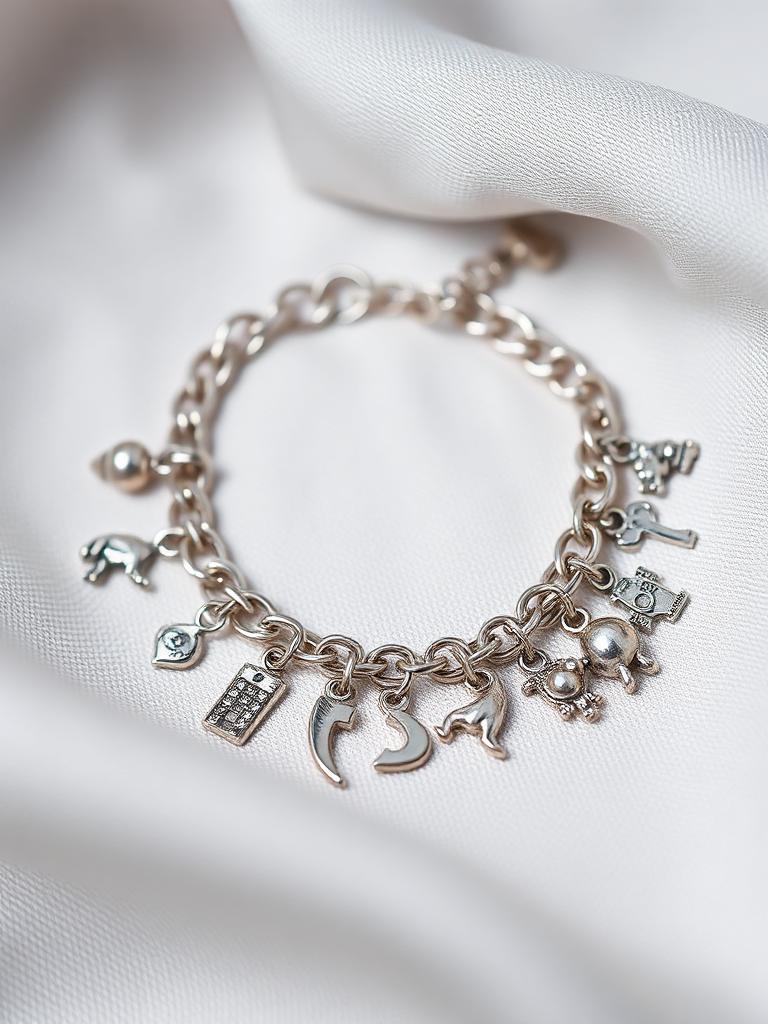
Made for your imagination
3D Part Remover lets you tap entire mesh components, see what disappears, and save the version you prefer. Your original model stays exactly as it was.
Select one or several separate mesh components in the interactive 3D viewer.
Optional AI part preparation can separate an eligible original model into more selectable pieces. It may use provider credits.
Preview the actual subtraction and save a new private GLB. Earlier versions remain available.
Step by step · Your own pace
Finish creating a 3D design in DYOJ, then open 3D Tools and choose Part Remover.
Your action: Open 3D Part Remover from the toolbox.
DYOJ tip: The tools are available for eligible saved 3D designs; you do not need separate modelling software.
Select from your saved 3D versions, including designs you previously refined with other DYOJ tools.
Your action: Use the Choose your saved 3D model menu.
DYOJ tip: Each save creates another version, so experimenting won't overwrite the original.
The viewer shows the model's existing selectable mesh parts. If the original needs finer selection, you can optionally prepare more detailed parts.
Your action: Tap the components you want to remove, or use Optional · Prepare more selectable parts when available.
DYOJ tip: If a detail is fused into one mesh, the 3D Eraser is often better for removing a small area.
Tap one unwanted part or multiple separate parts. Your selection is highlighted before any change is made.
Your action: Review the highlighted pieces and choose Remove selected parts.
DYOJ tip: Leave the pieces you love unselected. The rest of the original geometry is preserved.
DYOJ creates a preview of the edited complete model. You can return to selection to adjust the removal.
Your action: Rotate and zoom the preview. Use Change selection if needed.
DYOJ tip: Nothing is saved as a new model until you choose Save This Version.
Store the result as a private, reusable 3D model. You can open it again or continue with Eraser, Engraving, Enhancer, or Surgery.
Your action: Choose Save This Version.
DYOJ tip: A saved creative model is not automatically production-certified.
You can make another edit or optionally send this exact saved version to the workshop.
Your action: Choose Send for Manufacturing Review only if you want the team to receive it.
DYOJ tip: Factory preparation, physical sizing, casting and quality checks happen separately.
See the creative idea
Imagine a charm with one decorative loop you no longer want. Select that separate mesh piece, remove it, and keep the rest of your charm.
This illustration helps explain the editing principle. Your real result is created and previewed in the interactive DYOJ 3D tool.
Original: extra component
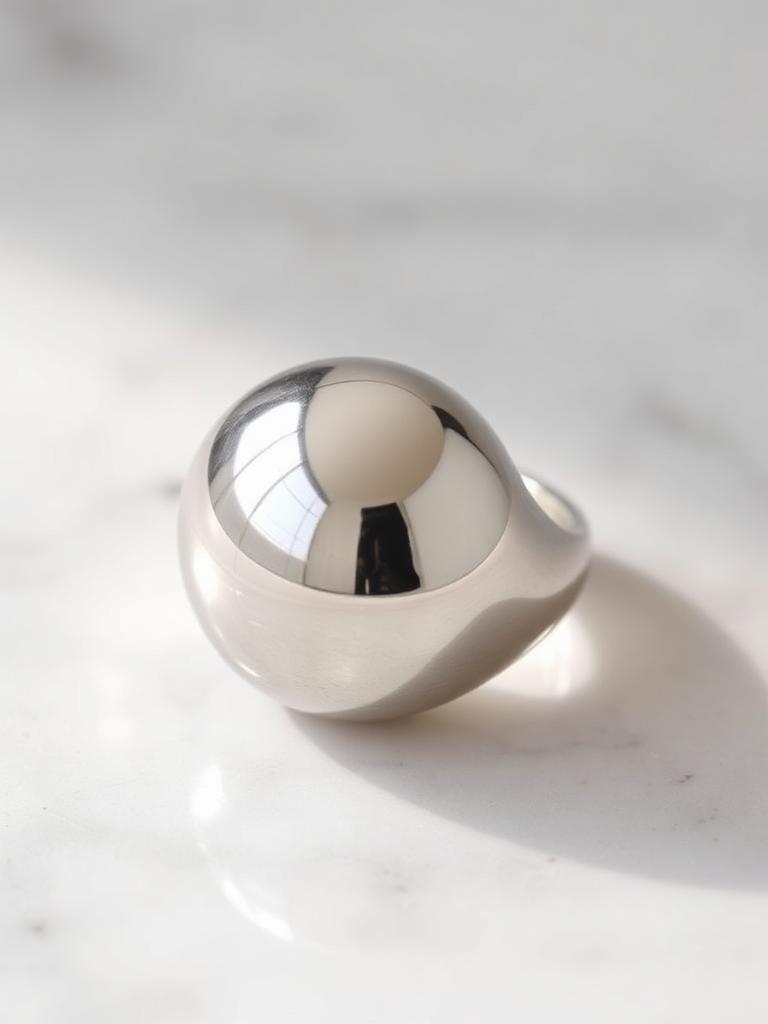
One creative example
Imagine a charm with one decorative loop you no longer want. Select that separate mesh piece, remove it, and keep the rest of your charm.
Choose Part Remover for a complete independent piece. For a precise region inside one connected shape, explore 3D Eraser.
Create first. Manufacture with care.
Saving your creative GLB doesn't require 3D Doctor, structural certification or a manufacturing approval screen. Sending it to the workshop is optional, and our specialists review production feasibility separately.
Good to know
Part Remover removes entire selectable 3D mesh components. Eraser uses a movable sphere or box to remove a region inside the model.
Yes. Tap multiple separate parts, then preview their removal together.
You may optionally prepare more selectable parts for an eligible original model. Or use Eraser to remove a specific region without dividing the whole model first.
No. The original and earlier saved versions remain available. A completed edit is saved separately.
Ordinary local part removal does not need an AI generation. Optional detailed part preparation can use provider credits.
You can save and explore the result immediately. Sending it for manufacturing review is optional; the workshop separately checks production feasibility.
Discover the complete DYOJ toolbox
DYOJ AI · Create something no one else has
Start with your idea. Explore it in 3D. Refine every detail on your own terms.
Explore all five 3D Tools