Create from your words
Choose one mesh component and describe how its appearance should change.
3D Part Enhancer · DYOJ TUTORIAL
YOUR IDEA. AN EVEN BETTER DETAIL.
Love almost everything about your creation? Reimagine just the detail you want.
Made for your imagination
DYOJ 3D Part Enhancer combines your own instructions with AI-assisted image and 3D creation. Select a part, describe a new look, preview the result, and choose whether to fine-tune its placement.
Choose one mesh component and describe how its appearance should change.
Optionally define a smaller region of the selected part using an adjustable cutting plane.
After AI generation, compare Original and Enhanced and optionally move, rotate or resize the new part.
Step by step · Your own pace
Open 3D Tools, select Part Enhancer, and choose the model you'd like to improve.
Your action: Use the Your 3D model dropdown if you have several saved versions.
DYOJ tip: Earlier versions from your other 3D tools can be used as a starting point.
Rotate the jewellery and tap the mesh component you want to enhance.
Your action: Select the part directly in the viewer.
DYOJ tip: If the original contains one large mesh, optional detailed segmentation may expose more individual parts.
Tell DYOJ exactly what you want: softer curves, a more graceful outline, a bold motif or a different decorative style.
Your action: Write your idea in What would you like to change?
DYOJ tip: Be specific about the chosen detail. AI generation uses provider credits.
Advanced controls can preserve part of the selected mesh and replace a smaller region.
Your action: Select Advanced · Change only part of the selected piece if needed.
DYOJ tip: This is optional. The default experience is to reimagine the selected component.
One Enhance action orchestrates its reference views, AI image exploration, new 3D generation and a preview of the assembled jewellery.
Your action: Choose Enhance Part and follow its generation progress.
DYOJ tip: Creation takes provider processing time. This is an AI-assisted transformation, not a guarantee of an identical shape.
Switch between Original and Enhanced. If the new part needs positioning changes, use the optional Adjust Part controls.
Your action: Move, rotate, resize or reset the replacement, then Apply Adjustment.
DYOJ tip: The original model remains stored even when you adjust a new version.
Keep your favourite result as a new private GLB. You can choose another part for another creative variation.
Your action: Select Save This Version, View Saved 3D or Enhance another part.
DYOJ tip: You can build on the saved result with other DYOJ 3D tools.
When your creative work is ready, optionally submit that exact saved design to the workshop.
Your action: Select Send for Manufacturing Review if you want the manufacturing team to receive it.
DYOJ tip: This is a human workshop handoff, not a Doctor approval gate for creative editing.
See the creative idea
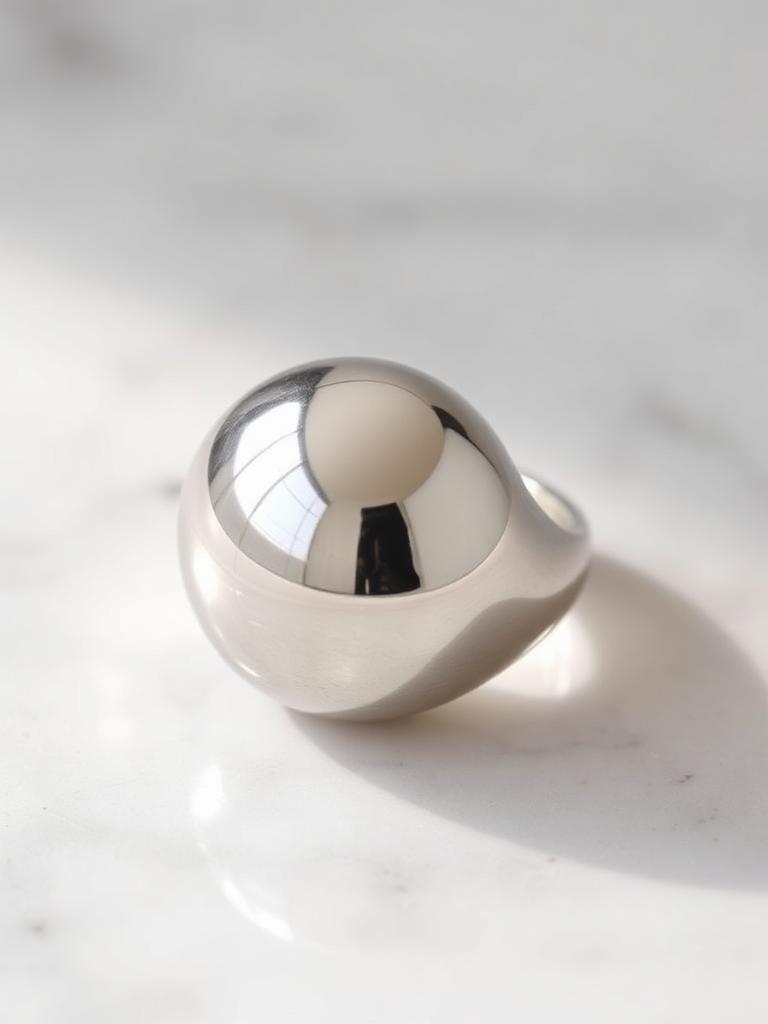
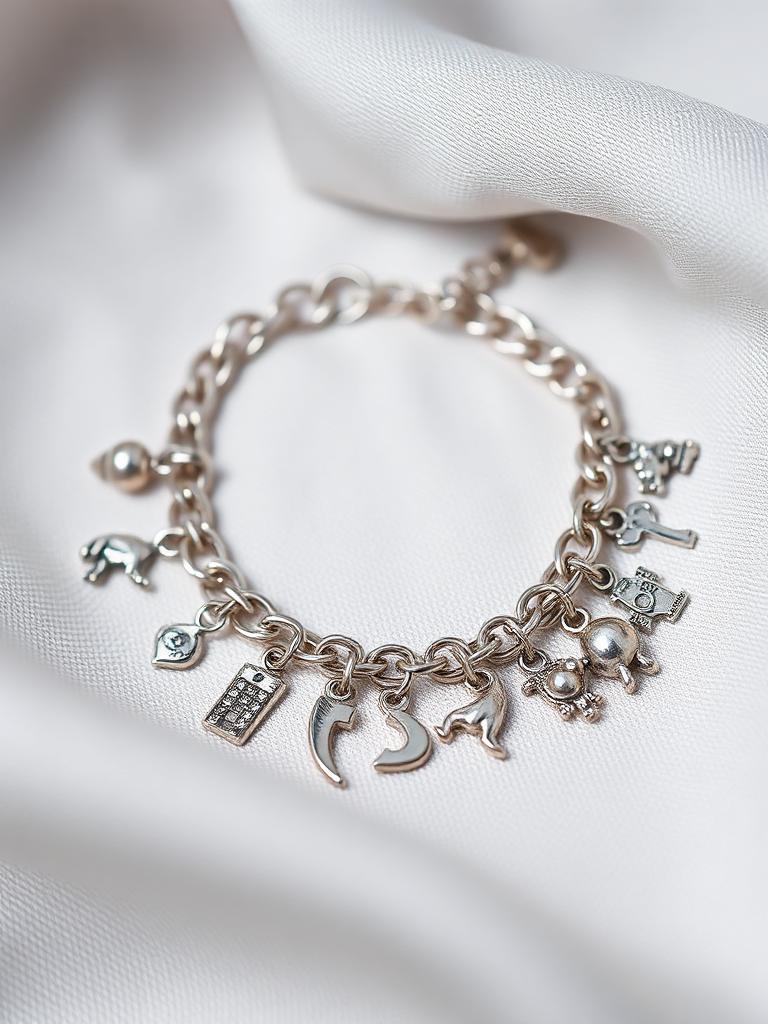
Your ring has the right overall shape, but you imagine its centerpiece as softer and more flowing. Tap that part and describe the change in your own words.
This illustration helps explain the editing principle. Your real result is created and previewed in the interactive DYOJ 3D tool.
Original detail
One creative example
Your ring has the right overall shape, but you imagine its centerpiece as softer and more flowing. Tap that part and describe the change in your own words.
Use Part Enhancer when you want AI to imagine a better component. Use Surgery to select, cut and align existing donor geometry with full precision.
Create first. Manufacture with care.
Saving your creative GLB doesn't require 3D Doctor, structural certification or a manufacturing approval screen. Sending it to the workshop is optional, and our specialists review production feasibility separately.
Good to know
You select the component you want to improve. The aim is to create a new version while retaining the rest of your jewellery.
Yes. Type the desired change directly into the enhancer's text field.
Yes. The advanced partial-edit option lets you adjust a cutting plane for a smaller replacement region.
Yes. After the result appears, you can optionally adjust its position, orientation and size.
Yes. Creating new enhanced references and 3D geometry uses the configured AI provider. The ordinary save of an already-created version is separate.
No. AI-created geometry can differ from your idea and may require manual refinement. The workshop independently reviews manufacturability.
Discover the complete DYOJ toolbox
DYOJ AI · Create something no one else has
Start with your idea. Explore it in 3D. Refine every detail on your own terms.
Explore all five 3D Tools